Easy Antivirus - clean virus
- 4.2
- Rating
- 1.00M
- Installs
- Free
- Price

 Analysis by App-foxy
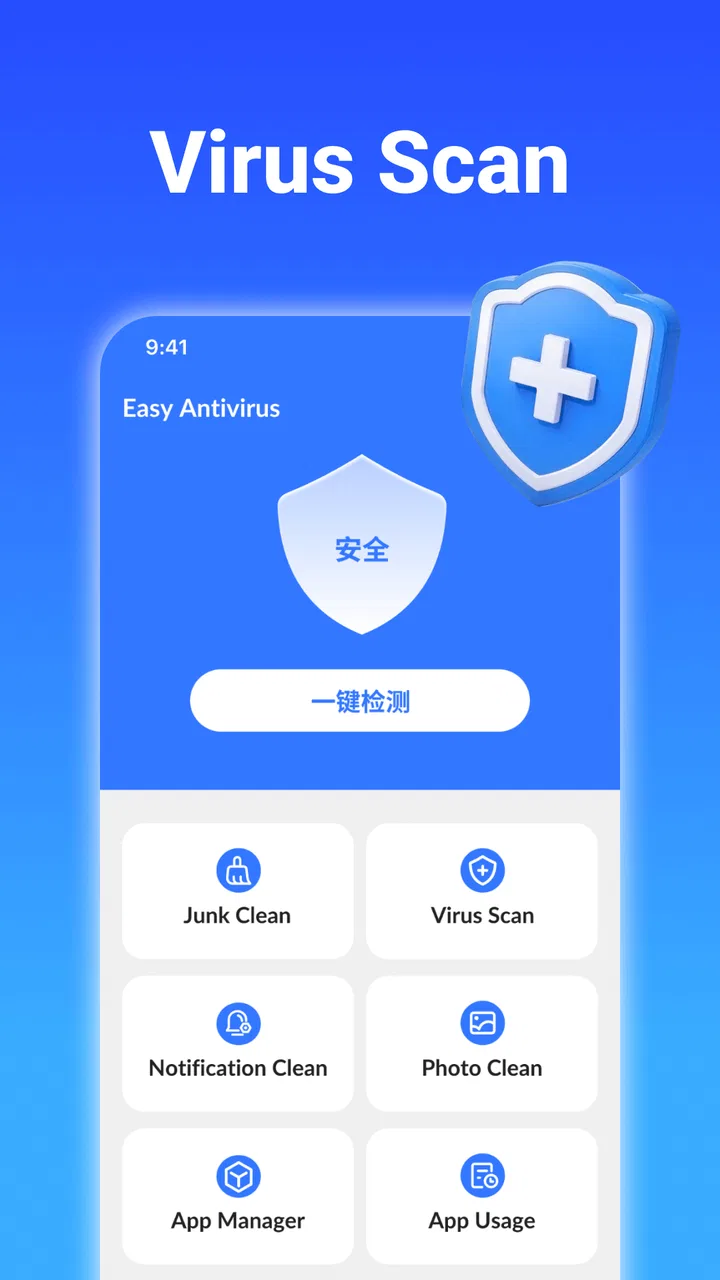
I like phone-cleaning tools that make their purpose obvious, and Easy Antivirus - clean virus takes that approach. Developed by TAICHI, this free Android tools app brings antivirus checking and junk cleanup into one place instead of asking me to manage several unrelated utilities. Its store summary focuses on keeping a phone clean and safe, but in daily use the more useful question is how it fits into a repeatable maintenance routine.
The app has a 4.6 average from around 9,400 ratings, with more than a million installs. Those figures suggest that it has found an audience among people who want a straightforward security and cleanup companion rather than a complicated system-management suite. It is rated for Everyone, runs on Android 7.0 and later, and its current version is 1.0.4. I would describe it as a practical first layer of checking, not a replacement for careful downloading habits or the security protections already built into Android.
Starting with a simple phone-cleaning routine
My preferred way to use an app like this is not to open it repeatedly whenever the phone feels slow. I start with a baseline scan after installation, then treat the result as a snapshot rather than a diagnosis of every performance problem. A phone can feel sluggish because of storage pressure, a demanding app, a weak connection, or background activity; a junk-cleaning result will not automatically explain all of those causes.
You May Also Like

 Blood Strike: 2.5 Anniversary
Blood Strike’s Loadouts Turn Every Drop Into a Tactical Gamble
A close look at Blood Strike’s custom loadouts: how fast access to signature weapons reshapes its battle royale rhythm, rewards preparation, and narrows the gap between fights.

 Pandora - Music & Podcasts
Pandora’s Music Is Easy to Start, but Harder to Recover
Pandora’s strength is its low-effort path from a seed to a station. Its weak spot is how much confidence it asks you to place in connection, setup, and quiet recovery.

 8 Ball Pool
 Is Built on Rivalries, Rematches, and Routine
A close look at the rivalries, rematches, shared routines, and unanswered safety questions that turn a quick pool match into a persistent mobile community.

 Samsung Music
’s Quiet Strength Is Playing What You Already Own
Its reach comes less from spectacle than from dependable access to a personal library. That simplicity is both the app’s strongest retention engine and its ceiling.

 AccuWeather: Weather Radar
AccuWeather Review: A Quick, Clear Forecast for Everyday Decisions
For everyday plans, the best forecast is the one you can understand quickly. AccuWeather makes rain timing, radar, and local conditions easy to act on, with a few trade-offs.

 Hill Climb Racing
Why Hill Climb Racing Still Turns Crashes Into One More Run
A tiny car, a bumpy hill and one more upgrade: Hill Climb Racing keeps resurfacing because its simple chaos makes every near-miss feel personal.
More From Our News Desk



The first pass is most useful when I review what Easy Antivirus identifies before accepting any cleanup action. “Junk” is a broad label in phone-maintenance apps, and experienced users should avoid tapping through a result without looking at the categories or items involved. Temporary files are very different from downloads, saved media, offline content, or files I intentionally keep for work. The safest workflow is scan, inspect, remove only what is clearly disposable, and then check whether the phone behaves better.
That habit matters more than running a scan several times in a row. Repeating the same cleanup immediately will not make a device progressively healthier if nothing new has accumulated. Instead, I use the app at sensible moments: after installing several unfamiliar applications, before freeing space for a system update, or when I have noticed that temporary clutter has built up. This turns the tool into a maintenance checkpoint rather than a source of constant alerts.
A realistic example is a phone used for commuting. I might download maps, save short videos, receive images in group chats, and install a travel app before a trip. Once the journey is over, Easy Antivirus can help me review accumulated clutter, but I would still inspect personal downloads and chat media manually. The useful combination is the app’s scan for a quick overview followed by my own decision about what should stay.
The best first rule is simple: let the app find candidates, but keep the final decision in your hands. That approach reduces the chance of deleting something useful and also gives me a clearer idea of what is actually consuming space. It is a small distinction, but it separates sensible cleanup from blindly chasing a large number on a results screen.
What I check before trusting a result
I pay attention to whether a result is clearly temporary, duplicated, or connected to an application I still use. A file that looks unnecessary by name may be part of an offline workflow, while a large video or document may be valuable even if it contributes more to storage usage than ordinary cache files. I also prefer to close the apps I am actively using before cleanup, especially if I am about to remove temporary material generated during a session.
For virus checking, I treat the scan as a useful second opinion. If the app flags something, I do not immediately assume that the phone is compromised. I look at the application involved, where it came from, and whether removing it would affect something important. If the warning concerns an app I do not recognize, uninstalling that app may be sensible; if it concerns a tool I deliberately installed, I investigate first. Security decisions deserve more care than storage decisions.
This is also where the app’s simple design can be both helpful and limiting. A clear workflow is friendly to people who do not want technical menus, but it may not satisfy users who expect detailed threat explanations, deep permission analysis, or enterprise-style reporting. I would recommend it as an accessible check, while keeping the phone’s normal Android security settings and cautious installation habits in place.
Settings and habits worth checking before regular use
After the first scan, I would spend a few minutes reviewing the app’s available settings rather than assuming the default behavior suits every phone. The important principle is restraint. A cleaner should not become another source of interruptions, and an antivirus tool should not encourage me to treat every notification as an emergency. I look for controls related to scan behavior, notifications, and cleanup confirmation, then choose the least intrusive arrangement that still supports my routine.
If notifications can be adjusted, I prefer reminders that correspond to a reason: a planned maintenance check or a genuine result that needs attention. Constant prompts can make users run unnecessary cleanups, and that weakens the value of the app’s reports. A quiet tool that I open deliberately is more useful to me than one that repeatedly demands attention without adding new information.
I also check the wording on any cleanup confirmation screen. Before approving a broad action, I want to know whether the selection concerns temporary material or personal files. If the app presents grouped results, I use those groups to narrow the cleanup. This is one of the most practical settings-related habits because it prevents convenience from turning into accidental deletion.
Another useful routine is to run a security check after installing an application from outside my normal collection of trusted apps. I do not use that as permission to download carelessly. Instead, it gives me a repeatable checkpoint: install only when necessary, scan, review the result, and remove the new app if it behaves suspiciously or is not needed. The scan is most valuable when paired with judgment, not when used as a license to ignore source quality.
Because this is a free app, I also keep my expectations realistic. I would not choose it solely because I expect a cleaner to transform an older phone into a new one. Storage cleanup can recover room, and a security check can reveal an unwanted application, but neither automatically fixes battery wear, weak hardware, poor mobile coverage, or an app that is badly optimized. Knowing that boundary prevents disappointment.
Making the workflow repeatable
I find that a short checklist works better than relying on memory. Before cleaning, I save anything important, finish downloads, and close tasks that should not be interrupted. During the scan, I inspect the categories. Afterward, I open the phone’s storage view or the relevant apps to see whether the result matches what I expected. If the device feels no different, I stop there rather than repeating the process in search of an improvement that may not exist.
This method is especially useful for family phones. A less technical user can start with the app’s straightforward scan, while I can teach them three questions: do I recognize this item, is it temporary, and do I need it later? Those questions are more transferable than telling someone to press a cleanup button whenever the phone displays a warning.
I would also avoid making the app the only place where I manage files. Android’s own file and storage tools remain important because they show personal content in its original context. Easy Antivirus is convenient for a broad check, but the system tools are often better when I need to locate a particular photo, document, or download and decide whether to archive it.
Faster patterns for everyday use
Once the baseline is complete, I use a faster pattern: scan only when there is a clear trigger, review the largest or most questionable categories first, and stop as soon as the task is complete. This avoids spending time on repeated full routines when I only need to investigate clutter after a busy week. The app’s value is highest when it shortens a decision, not when it becomes another daily ritual.
One practical trigger is a nearly full phone before recording an important event. I first move or delete personal media manually, because those files are usually the most meaningful. Then I use Easy Antivirus to look for disposable residue that is harder to identify by hand. This order protects memories and work files while still taking advantage of the app’s convenience.
A second pattern is post-installation checking. After trying a new utility, I run a scan and observe the phone for unusual behavior such as unexpected interruptions or excessive background activity. The app can contribute a security check, but it cannot replace my own observation. If the new application is unnecessary, uninstalling it is often a cleaner solution than trying to manage its leftovers indefinitely.
A third pattern is shared-device maintenance. On a family tablet or spare phone, I would run the scan before handing the device to another person, then review downloads and large media separately. This makes the app part of a handover routine. It is not just about freeing space; it helps me avoid passing along an unfamiliar application or a confusing collection of temporary files.
Shortcuts can help only if they preserve review time. If the app offers a direct route to scanning, I use that route, but I do not treat a shortcut to cleanup as permission to skip the results screen. The fastest safe action is often a quick scan followed by selective removal, not a single tap that clears everything available.
Where it compares well with usual alternatives
Compared with using only Android’s built-in storage screen, Easy Antivirus is more approachable for someone who wants a combined cleanup and security check in one app. The system tools are usually the better choice for precise file management and understanding how individual applications use space, while this app is more convenient as a broad starting point.
Compared with installing separate antivirus and cleaner utilities, the combined approach can reduce clutter in the app drawer and simplify a family member’s routine. The trade-off is that a dedicated security product may offer deeper threat information, while a dedicated file manager may provide more control over folders and transfers. I would choose Easy Antivirus when simplicity matters more than specialist depth.
It also differs from aggressive “boost” tools that promise instant performance gains. I prefer its practical purpose: check for unwanted software and review removable clutter. Users should still be skeptical of any cleaner that suggests every cached item is harmful or that a phone needs constant optimization. Storage recovery is measurable; a vague promise of speed is much harder to trust.
Advanced limits and situations where I would skip it
Easy Antivirus is not the right choice for someone who wants forensic-level security analysis, detailed permission auditing, or a complete file-management environment. A technically confident user may prefer Android’s own controls combined with a specialist security product and a capable file manager. That setup takes more effort, but it can offer clearer separation between scanning, storage management, and application administration.
I would also skip relying on it as the sole defense on a device used for sensitive business or financial work. A basic scan is helpful, but safe behavior still includes installing updates, using reputable sources, reviewing permissions, and removing applications that are no longer needed. No cleaner can compensate for entering credentials into a suspicious page or approving an unknown installation.
There is a performance trade-off as well. Any scan consumes some battery and processing time while it runs. On an older phone, I would avoid scanning during navigation, gaming, video calls, or other demanding tasks. Running it while the device is idle makes more sense. If the phone is already functioning normally and has ample free space, frequent scans may offer little practical benefit.
Privacy-conscious users should read the app’s on-screen explanations and Android permission prompts carefully before proceeding. I do not grant access automatically just because an app is labeled as a cleaner. The right choice depends on what the app asks to inspect and whether that access makes sense for the task I want to perform. If the requested access feels broader than necessary, I would pause and reconsider rather than forcing the installation into my routine.
Another limitation is interpretation. A security result can be reassuring when it is clear, but a warning without enough context may leave inexperienced users unsure what to do. I would never uninstall a critical system component or a work application solely because a result looks alarming. When the consequences are serious, I verify the application identity and use Android’s application settings before taking action.
Who gets the most value from it
This app suits people who want one uncomplicated place to begin checking their phone. It is particularly useful for users who regularly accumulate temporary clutter, help relatives maintain their devices, or want a quick security checkpoint after trying unfamiliar applications. The Everyone age rating and free access also make it easy to consider for general household use, provided the person using it understands that cleanup results still need review.
It is less suitable for users who already maintain their storage carefully and want advanced controls. If I know exactly where every file is, use Android’s built-in protection confidently, and dislike extra utilities, installing another tool may not improve my routine. The app earns its place when it removes friction, not when it duplicates a process I already handle efficiently.
My verdict after building a maintenance habit
Easy Antivirus - clean virus is a sensible, approachable tools app from TAICHI for people who want cleanup and antivirus checking together. Its free price, broad Android compatibility, and straightforward purpose make it easy to try, while its popularity—around 9,400 ratings and over a million installs—shows that the format appeals to many phone owners. The current version, 1.0.4, is the one I would evaluate when deciding whether its workflow fits my device.
My recommendation comes with one condition: use it selectively. Scan when there is a reason, inspect cleanup results, and treat security warnings as prompts for investigation rather than automatic proof of danger. Pair the app with Android’s own storage controls, careful installation habits, and regular removal of applications you no longer use. That combination is stronger than any single button inside a cleaner.
For a friend who wants a simple starting point, I would recommend it. For someone seeking deep security reporting or precise file operations, I would point them toward more specialized alternatives. Its real strength is not dramatic phone acceleration; it is turning occasional cleanup and security checks into a manageable routine. Used with that expectation, it is a useful companion rather than an exaggerated cure-all.
FAQs for Easy Antivirus - clean virus
01What features does Easy Antivirus offer to protect my device?
Easy Antivirus provides comprehensive protection with features such as real-time virus scanning, malware detection, and removal capabilities. It also includes a privacy advisor to protect sensitive data and a performance booster to enhance your device's speed. The app is designed to be user-friendly, ensuring that even non-tech-savvy users can navigate its features easily.
02Is Easy Antivirus effective against the latest malware and viruses?
Yes, Easy Antivirus is regularly updated to keep up with the latest threats. The app's developers frequently release updates that include new virus definitions and security patches to ensure your device remains protected against emerging malware and virus threats. It's crucial to keep the app updated to maintain optimal security.
03Does Easy Antivirus impact the performance of my device?
Easy Antivirus is designed to run smoothly in the background without significantly affecting your device's performance. It includes a performance booster feature that helps optimize your device's speed and efficiency. While running scans, there may be minimal impact, but overall, the app is optimized for low resource usage.
04How user-friendly is Easy Antivirus for non-technical users?
Easy Antivirus is built with a straightforward and intuitive interface, making it accessible to users with varying levels of technical expertise. The app guides users through setup and usage with clear instructions and prompts, ensuring that even those unfamiliar with antivirus software can effectively utilize its features.
05Is there a cost associated with using Easy Antivirus?
Easy Antivirus offers both free and premium versions. The free version provides basic protection features, while the premium version includes advanced features such as enhanced privacy protection, ad-free experience, and priority customer support. Users can choose based on their security needs and budget.
Pros
- User-friendly interface for easy navigation.
- Quick virus scanning with minimal system impact.
- Includes real-time protection features.
- Regular updates for the latest threats.
- Integrated system optimization tools.
Cons
- Contains in-app advertisements.
- Some features require a premium subscription.
- May occasionally flag safe apps.
- Limited customer support options.
- No multi-device license available.

Easy Antivirus - clean virus
Gallery